Change Delivery Status
Change the status of Invoice Delivery
Change the status
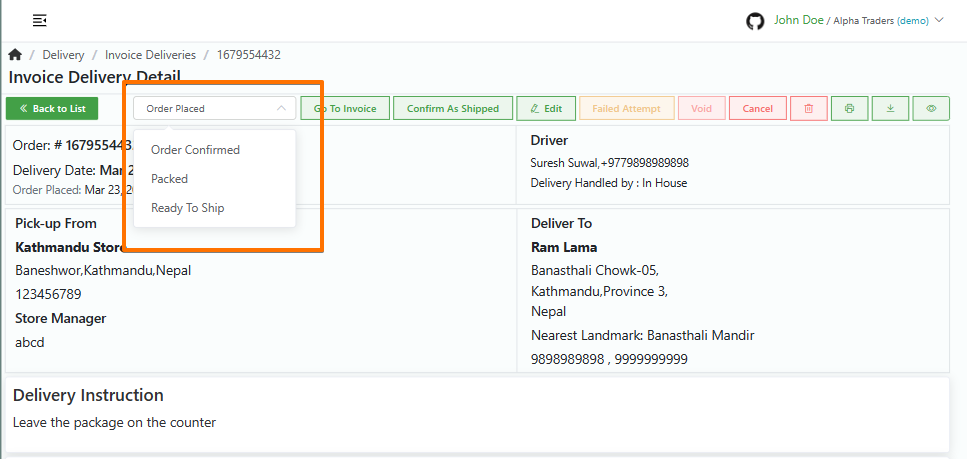
Invoice Delivery Status: Order Placed / Order Confirmed / Packed / Ready To Ship
Direct Link: https://app.meroerp.com/delivery/d/invoice-deliveries
- Log in to your MeroERP account.
- On the left navigation menu, browse to Invoice Delivery. This will take you to Invoice Deliveries list page.
- Find the invoice delivery of which you would like to change delivery status and click on it. This will redirect you to the Invoice Delivery Detail page.
- In the right buttons panel, find the drop down menu. The available options are:
- Order Placed
- Order Confirmed
- Packed
- Ready To Ship
- Depending upon the order status choose the option.
Invoice Delivery Status: Confirm as Shipped
Direct Link: https://app.meroerp.com/delivery/d/invoice-deliveries
- Log in to your MeroERP account.
- On the left navigation menu, browse to Invoice Delivery. This will take you to Invoice Deliveries list page.
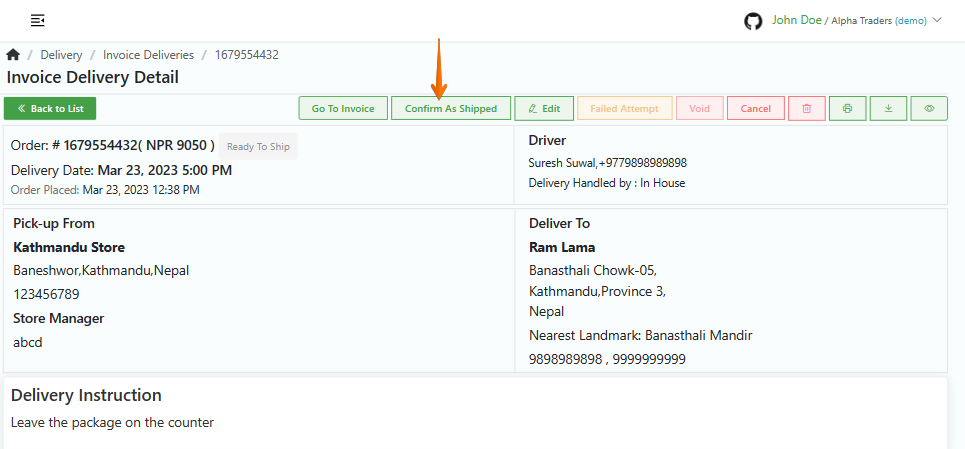
- Find the invoice delivery of which you would like to change delivery status to shipped and click on it. This will redirect you to the Invoice Delivery Detail page.
- In the right buttons panel, click on Confirm As Shipped.
Invoice Delivery Status: Confirm as Received
Direct Link: https://app.meroerp.com/delivery/d/invoice-deliveries
Log in to your MeroERP account.
On the left navigation menu, browse to Invoice Delivery. This will take you to Invoice Deliveries list page.
Find the invoice delivery of which you would like to change delivery status to delivered and click on it. This will redirect you to the Invoice Delivery Detail page.
Make sure the precondition stated is met.
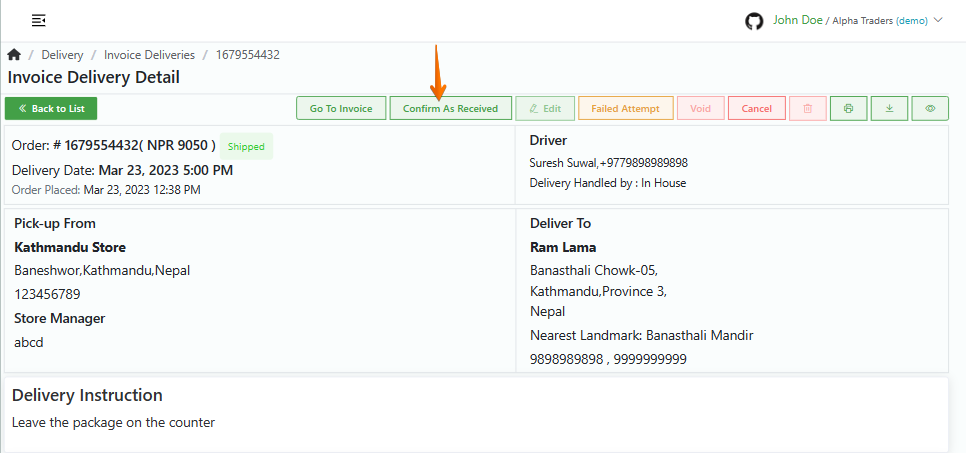
Precondition: Order Status: Shipped
In the right buttons panel, click on Confirm As Received.
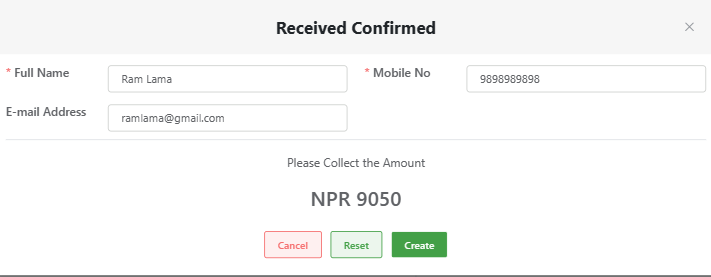
A Received Confirmed popup will appear. Double check the details with the customer
- *Full Name
- *Mobile No.
- Email Address
Make sure to collect the indicated payment amount from the customer. Then click on Create.
Invoice Delivery Status: Failed Attempt
Direct Link: https://app.meroerp.com/delivery/d/invoice-deliveries
Log in to your MeroERP account.
On the left navigation menu, browse to Invoice Delivery. This will take you to Invoice Deliveries list page.
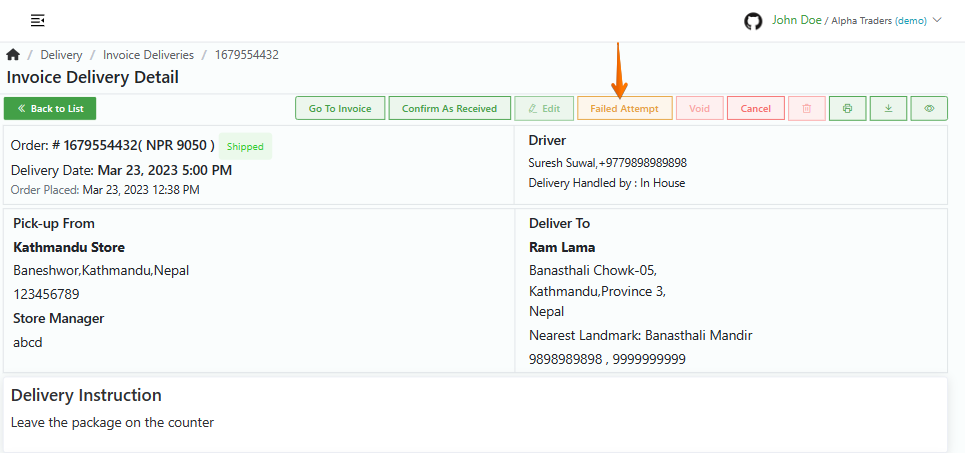
Find the invoice delivery which failed to get delivered and click on it. This will redirect you to the Invoice Delivery Detail page.
Make sure the precondition stated is met.
Precondition: Order Status: Shipped
In the right buttons panel, click on Failed Attempt.
A confirmation popup will appear. Enter the reason and click on Proceed.